
Fortnite Simple Build: How and Why to Turn It Off
Understand what Fortnite’s Simple Build does, why it matters, and how to turn it off or on for faster, more precise building.
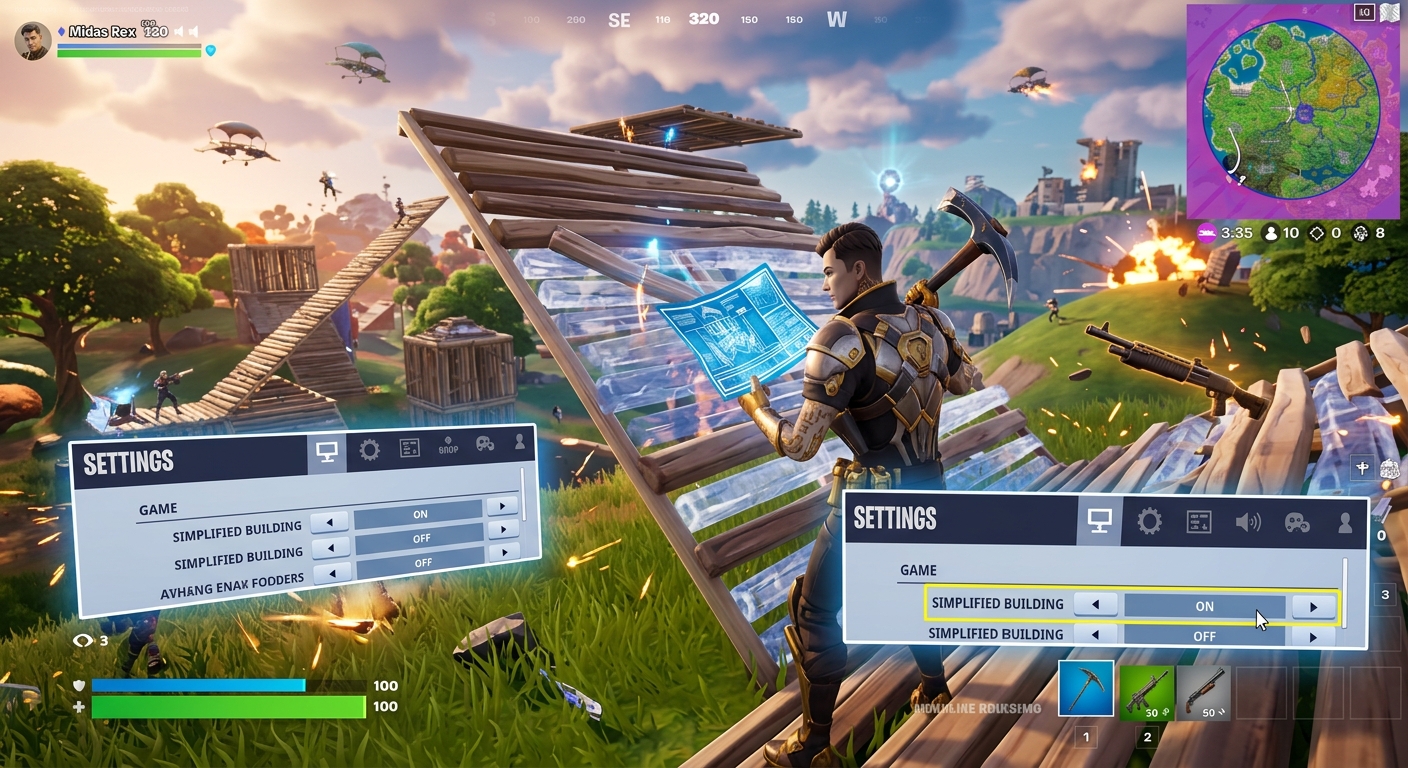
Fortnite’s building system is one of the main reasons the game stands out from other battle royales, but it can also be overwhelming for new or returning players. To make things easier, Epic Games added options like Simple Build and Simple Edit, which streamline construction and editing. These features can help beginners, yet many players eventually want the full control of traditional building.
This guide explains in detail what Simple Build is, how it affects your gameplay, and the exact steps to turn it off (or back on) on different platforms. You’ll also find tips on when you might want to use it, common issues, and answers to frequently asked questions.
What Simple Build Actually Does
Simple Build is a control setting designed to make building feel more straightforward, especially for players who are still learning how structures work. Instead of forcing you to quickly swap between walls, floors, ramps, and roofs, Simple Build helps automate some of that process and reduces how many inputs you need to place basic pieces.
On a practical level, Simple Build is meant to:
- Reduce the number of buttons you press for common builds.
- Make it easier to place structures in the direction you’re looking.
- Lower the skill barrier for new or casual players who struggle with fast building.
However, this convenience comes with trade-offs:
- You have less precise control over which structure is placed at any moment.
- Competitive players often feel Simple Build slows down their reaction time.
- Advanced techniques (like high-level tunneling or specific piece control) become harder to execute.
Because of this, many players enjoy Simple Build at first but later decide they want to disable it and return to classic building inputs once they’re more comfortable.
Simple Build vs Classic Building: Key Differences
Before you decide whether to keep Simple Build on, it helps to understand what changes when you use it compared with the standard system.
| Feature | Simple Build Enabled | Classic Building (Simple Build Off) |
|---|---|---|
| Control complexity | Lower, fewer manual choices | Higher, more direct control over each piece |
| Speed potential | Good for basic plays, limited at top level | Highest potential for fast, advanced builds |
| Precision | More automated, less exact piece selection | Very precise structure placement |
| Learning curve | Easier for beginners | Steeper, especially for new players |
| Best suited for | New/casual players, controller users learning basics | Intermediate & advanced players, competitive modes |
Overall, Simple Build is a helping hand, not a long-term substitute for mastering full building. As your skills grow, turning it off becomes increasingly appealing.
How to Turn Off Simple Build in Fortnite
The exact menu layout can shift slightly with major updates and chapters, but the core steps remain similar across platforms. The Simple Build option lives in the Game settings tab under the building section.
Universal Step-by-Step Instructions
Use these steps whether you’re playing on PC, console, or mobile. The names of buttons (Escape, Options, Menu) will differ by platform, but the flow is the same:
- Open the main menu
While in the lobby or in a match, open the main menu using your platform’s menu button (for example, Esc on PC, the Options/Menu button on controller). - Go to Settings
Look for the gear icon and select it to open Fortnite’s settings screen. - Navigate to the Game tab
At the top of the settings screen, move through the icons until you find the tab labeled with a gamepad or “Game”. This is usually the tab that controls core gameplay options. - Scroll to the building section
Within the Game tab, scroll down until you reach a section related to building. Here is where you’ll typically see building-related toggles, such as Simple Build. - Find the Simple Build option
Look for Simple Build in the list. If it’s currently enabled, it will show as On. - Set Simple Build to Off
Change the setting from On to Off. On most platforms, this is done by pressing left/right on a controller or clicking the toggle on PC. - Apply your changes
Don’t forget to hit Apply (usually a button at the bottom of the screen). If you leave the menu without applying, the setting might revert. - Exit the settings
Back out of the menu and return to the game. You’ll now be building with the standard control scheme.
Platform-Specific Notes
- PC (Keyboard & Mouse) – The setting layout is very similar to console, but you’ll navigate with your mouse. Simple Build doesn’t change your keybinds; it changes how the game interprets your inputs.
- Console (PlayStation, Xbox, Switch) – Access the menu with your controller’s Options/Menu/+ button, then follow the same steps. Controller players often feel the difference most clearly when they swap off Simple Build because they gain more nuanced control.
- Mobile – If Fortnite is available on your device, the settings structure still follows the same pattern. Tap the menu three-line icon, then the gear, then the Game tab, and scroll to Simple Build.
How to Turn Simple Build Back On
If you try playing without Simple Build and decide it’s not for you yet, you can re-enable it at any time.
The process is the same as above, in reverse:
- Open the main menu.
- Go to Settings > Game tab.
- Scroll to the building section.
- Change Simple Build from Off to On.
- Press Apply to save.
Experimenting between the two modes is a good way to decide which one feels best for your skill level and controller setup.
Simple Build vs Simple Edit
Epic Games also offers a separate feature called Simple Edit, which is easy to confuse with Simple Build. While Simple Build focuses on placing pieces, Simple Edit streamlines the process of editing structures you have already placed.
According to Epic’s official support documentation, Simple Edit lets you edit the part of a building you’re looking at with a single button press instead of manual tile selection, making edits “quicker and more intuitive” for many players.1 It also offers an optional “Tap to Simple Edit” behavior that changes whether you tap or hold to start edits.
The important point for you is that these two toggles are independent:
- You can have Simple Build off but Simple Edit on.
- You can have both features turned on.
- Or you can disable them both for maximum manual control.
If you like smooth, one-button edits yet want full control over which pieces you place, try using Classic building with Simple Edit enabled.
Should You Turn Simple Build Off? Pros and Cons
There’s no universal “best” setting. It depends on your goals, hardware, and comfort with Fortnite’s controls.
Reasons to Disable Simple Build
- You want to improve for competitive modes.
Competitive playlists and tournaments reward precise, fast building. High-level players rely on direct control instead of automated assistance to execute advanced techniques. - You frequently misplace structures.
If you find that the game isn’t placing the exact pieces you intend when Simple Build is on, switching it off gives you more predictable outcomes. - You’re learning advanced mechanics.
Moves like double edits, piece control, or ultra-fast 90s are easier when you build with classic inputs, since you know exactly what your next piece will be. - You watch or copy pro players.
Most professional or high-ranked players use standard building, so if you’re trying to mirror their setups and strategies, you’ll want to match their settings where possible.
Reasons to Keep Simple Build On
- You’re brand new to Fortnite.
If you’re still learning the basics of aiming, positioning, and just surviving off-spawn, simplifying building can reduce cognitive overload and help you focus on fundamentals. - You play casually or with younger players.
Families and casual squads might prefer the more forgiving feel of automated building while they focus on fun rather than mastery. - You have limited dexterity or prefer lower input complexity.
For some players, fewer buttons and actions mean a more comfortable experience, even if it caps their ceiling a bit.
A good approach is to start with Simple Build on, then schedule a transition period where you practice without it in creative modes or casual matches until classic building starts to feel natural.
Transitioning Away from Simple Build: Practical Tips
Turning Simple Build off is only the first step. To really benefit from classic building, you’ll want to refine your controls and practice efficiently.
1. Optimize Your Keybinds or Controller Layout
Epic’s official controller presets and customizable inputs give you different ways to handle building, including the popular “Builder Pro” style layout designed to make building faster and more intuitive on controller.2 On keyboard and mouse, customizing your keybinds can have a huge impact on how quickly you can place structures.3
Some general guidelines:
- Assign walls, ramps, floors, and roofs to keys or buttons that are easy to reach without moving your fingers too far.
- Use side mouse buttons (if available) for frequently used pieces.
- On controller, use a layout that gives you quick access to building without awkward finger stretches.
2. Practice in Low-Pressure Modes
Instead of jumping straight into sweaty late-game fights, spend time in creative modes, zero build (for aim and movement), or casual lobbies. Use these spaces to practice:
- Building simple 1×1 towers quickly.
- Placing walls and ramps for basic defense.
- Transitioning from aiming to building and back without hesitation.
3. Focus on Consistency Before Speed
When you first disable Simple Build, you may feel slower than before. That’s normal. Prioritize placing the right piece every time rather than placing many pieces quickly. Once your muscle memory catches up, speed will naturally increase.
Common Problems After Turning Off Simple Build
If things feel off after you change settings, you’re not alone. Here are some frequent issues and how to solve them.
“My building feels broken after I turned it off.”
Check for the following:
- Make sure Simple Build is truly Off and your changes were applied.
- Verify that your controller layout or keybinds didn’t reset during an update.
- Confirm that you’re not mixing up Simple Build with Simple Edit. They are separate toggles.
“I can’t build as fast as I used to.”
Speed is often lower at first when moving to classic controls. You can:
- Use creative maps focused on building practice.
- Gradually raise your sensitivity (if needed) after you’re comfortable.
- Watch high-level gameplay for examples of efficient building patterns.
“I turned off Simple Build but still struggle with edits.”
Consider enabling Simple Edit while keeping Simple Build off. As Epic’s support notes, Simple Edit can significantly streamline the editing process by letting you edit the specific part you’re looking at with a single button press, especially when “Tap to Simple Edit” is enabled.1
FAQs About Simple Build and Fortnite Building Settings
Is Simple Build available in all Fortnite modes?
Simple Build is primarily a general gameplay setting. However, certain simplified settings like Simple Edit are explicitly disabled in competitive modes according to Epic’s official documentation.1 If you’re playing in ranked or tournament-style modes and a feature doesn’t seem available, it may be intentionally restricted.
Does turning off Simple Build give me an advantage?
In casual lobbies, it’s mostly about preference. At higher levels of play, having full manual control tends to be an advantage because you can execute more complex and precise structures. Many competitive players therefore choose to keep Simple Build off.
Can I use different settings on different platforms?
If you play using the same Epic Games account on multiple devices, some settings are shared via the cloud, while others may remain device-specific. Control schemes and sensitivity often need to be fine-tuned per device, especially if you switch between controller and keyboard.
Is Simple Build only for controller players?
No. The setting appears in the general game options and can affect any control method. That said, controller players often feel its impact more clearly, because building on a gamepad is inherently more input-limited compared with a full keyboard.
Will Epic remove or change Simple Build in future updates?
Fortnite evolves constantly, with controls and accessibility features being updated over time. Epic has publicly emphasized making the game accessible to different skill levels and devices,4 so it’s reasonable to expect that some form of simplified controls will remain, even if the exact options change. Always check patch notes or the in-game settings after major updates to see if the behavior of Simple Build or Simple Edit has been adjusted.
Final Thoughts
Simple Build is a valuable tool for learning the basics of construction in Fortnite, but it isn’t the final destination for most players. Once you’re comfortable navigating the map, handling fights, and understanding structure types, switching Simple Build off opens the door to more precise, responsive, and ultimately more powerful building.
Use this setting as a stepping stone: keep it on while you’re learning, then turn it off and invest some time in practice to raise your ceiling. With the right control setup and a bit of patience, classic building can feel just as natural—while giving you far more control over every ramp, wall, and floor you place.
References
- How can I enable or disable Simple Edit in Fortnite? — Epic Games Player Support. 2024-03-18. https://www.epicgames.com/help/c-fortnite-c75/fortnite-gameplay-c79/how-can-i-enable-or-disable-simple-edit-in-fortnite-a000092956
- Fortnite – Controller Guide — Epic Games (News/Blog). 2018-04-02. https://www.epicgames.com/fortnite/en-US/news/controller-guide
- Fortnite – Keyboard Controls — Epic Games Help Center. 2022-08-11. https://www.epicgames.com/help/en-US/c-fortnite-c75/fortnite-gameplay-c79/fortnite-keyboard-controls-a000099468
- Bringing Fortnite to Mobile: Controls and HUD — Epic Games. 2018-03-09. https://www.epicgames.com/fortnite/en-US/news/fortnite-mobile
Similar Articles








Read full bio of Sneha Tete