Marathon Error Codes: Complete Fix Guide
Understand every major Marathon error code, what it means, and how to get back online fast with reliable fixes.
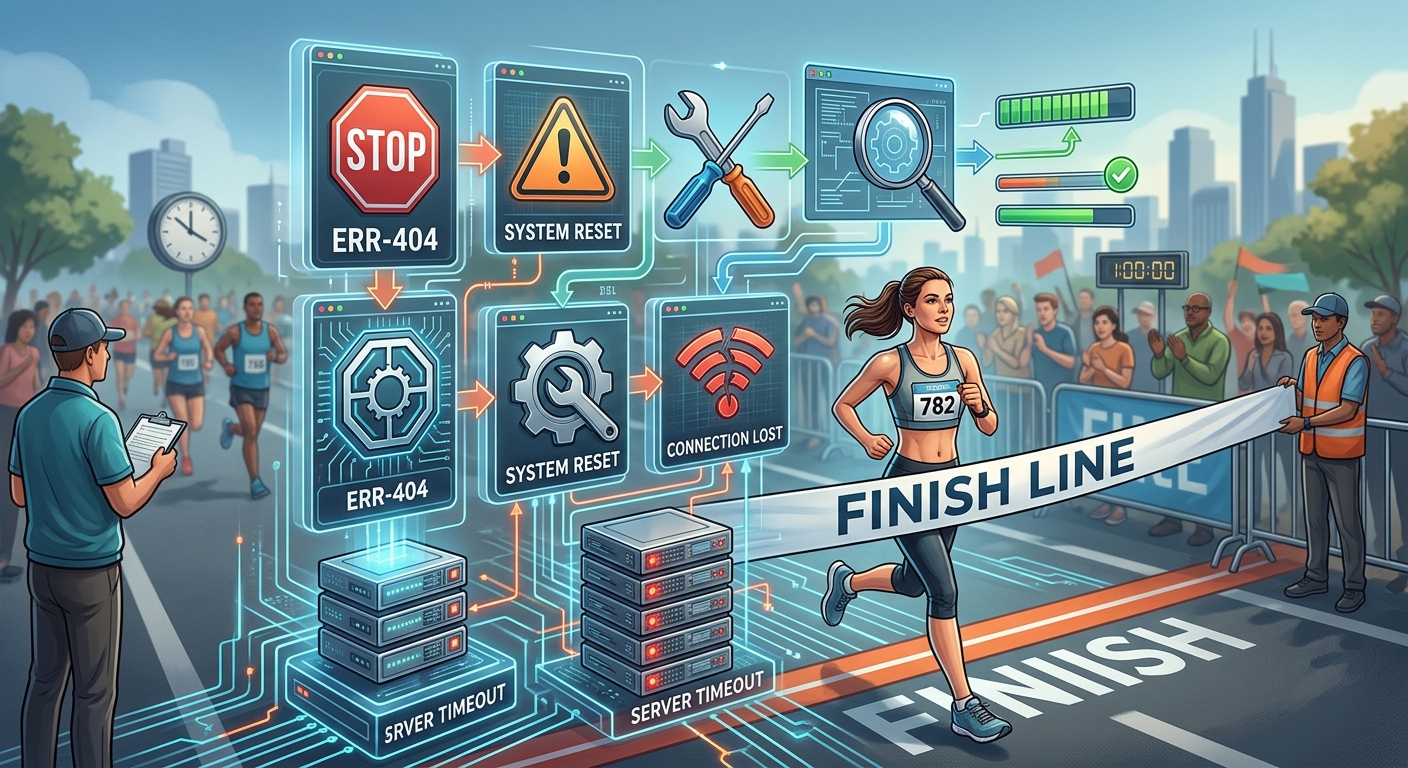
Marathon Error Codes: Full Guide to Server Issues and Fixes
Marathon’s online focus means a stable connection is just as important as your aim. When things go wrong, you’ll often see cryptic error codes instead of clear explanations. This guide breaks down the most common Marathon error codes, shows you what they usually mean, and walks you through tried-and-tested solutions for PC, PS5, and Xbox Series X|S.
This article is inspired by community troubleshooting and official Bungie guidance, but it is written from scratch to give you a clearer, more structured breakdown of what to try, in what order, and when it’s time to stop tweaking settings and simply wait for the servers to recover.
1. Before You Touch Any Settings: Global Quick Checks
Many Marathon errors share the same underlying causes: temporary server outages, flaky Wi‑Fi, or a console that needs a reboot. Before diving into code-specific steps, run through these universal checks. They fix a large share of problems without further effort.
- Restart Marathon completely. Close the game, ensure it’s not running in the background, then relaunch it.
- Verify Bungie’s server status. Check the official support sites to see if there’s planned maintenance or a known outage.
- Power cycle your router. Unplug it for 30–60 seconds, plug it back in, and wait for all lights to stabilize.
- Reboot your platform. Fully restart your PC, PS5, or Xbox Series X|S.
- Prefer a wired Ethernet connection. It significantly reduces packet loss and disconnections compared with Wi‑Fi.
- Update system software and drivers. Make sure your console firmware, operating system, and GPU/network drivers are current.
- Temporarily disable VPNs or proxies. These can interfere with matchmaking or authentication.
If your error persists after these quick steps, move on to the relevant sections for more specific fixes.
2. Understanding Marathon Error Codes and Categories
Although each code looks different, most of them fall into a few predictable categories:
| Error Type | Typical Cause | Common Symptoms |
|---|---|---|
| Server connection errors | Busy or unstable Bungie servers; routing issues between you and data centers | Can’t join queue, disconnects while matchmaking, long login times |
| Authentication and login errors | Token expiration, sign‑in problems, platform account issues | Stuck on title screen, repeated sign‑in prompts, account not recognized |
| Installation or file integrity errors | Corrupted game files, interrupted updates, storage issues | Crashes at launch, error right after patches, strange in‑game behavior |
| Platform and overlay conflicts | Screen capture apps, overlays, or system UI fighting for control | UI not responding, mouse cursor issues, frozen menus |
| Local network configuration errors | Strict NAT, DNS problems, firewall blocks, ISP outages | Frequent disconnects, can’t connect while other games work fine |
Bungie maintains a broad Marathon help site and a general error code and troubleshooting knowledge base that can provide extra detail for specific messages.
3. Server Connection Errors (Queue, Timeouts, and W: Codes)
During peak times, or limited test periods like a server stress test, server-related codes are the most common. They usually look like long alphanumeric strings or named codes and often indicate server congestion rather than a problem on your device.
3.1 Symptoms of Server-Side Issues
- Stuck in an unusually long matchmaking queue.
- Errors mentioning connectivity, timeouts, or unable to reach servers.
- Friends can connect but you consistently fail, or vice versa.
3.2 Essential Server-Related Fixes
- Confirm server status.
Visit the official Marathon help portal or Bungie’s server status page to see if there’s maintenance or outages. If the service page shows limited or down status, your only real option may be to wait. - Minimize local network stress.
Stop bandwidth-heavy tasks (streaming, downloads, cloud backups) on your network. If multiple people are streaming 4K video or downloading large files, your game traffic can suffer. - Switch from Wi‑Fi to Ethernet.
A wired connection drastically improves stability by reducing interference and packet loss, a common cause of disconnect errors. - Change DNS servers.
Using public DNS (e.g., Google DNS 8.8.8.8 / 8.8.4.4 or Cloudflare 1.1.1.1) can sometimes improve routing.- PC: Change the DNS settings in your adapter’s IPv4 properties.
- Console: In network settings, set DNS to manual and enter a reputable DNS pair.
- Avoid peak overload when possible.
Server slams or launch windows often mean overcrowded queues. Trying again 10–20 minutes later can succeed when repeated back‑to‑back attempts fail.
Because server infrastructure is controlled by the developer, there will be times when no local fix works. In those cases, monitor the official channels and wait for the all‑clear.
4. Authentication and Login Errors (Sign-In, Token, and Stingray-Style Codes)
Other error codes relate to account verification or session tokens. These usually occur when the game can’t properly confirm your identity with Bungie’s backend or your platform provider.
4.1 Common Authentication Problems
- “Could not sign in” style messages.
- Codes that appear immediately after you enter the game or reach the title screen.
- Being kicked to the login screen after a short time online.
4.2 Fixes for Login and Token Errors
- Fully restart the game to refresh your token.
Don’t just return to the menu; close Marathon entirely. On consoles, close the application from the system home screen. On PC, exit via Steam/Epic or the taskbar, then relaunch. - Confirm your platform account is online.
- PS5: Check that you’re signed into PSN and that PSN is not having service disruptions.
- Xbox: Ensure Xbox Live is online and that your profile is signed in.
- PC: Verify that Steam/Epic is online and you’re properly logged in.
- Check for two-factor authentication or security flags.
If you recently changed passwords or security settings on your platform account, sign out completely and sign back in to refresh your credentials. - Disable VPNs and proxies temporarily.
Some authentication systems flag login attempts from unusual locations. Connecting directly through your normal ISP often resolves this. - If nothing works, wait and retry.
When authentication services are under heavy load, the same login that fails now may work a few minutes later.
5. Installation, Update, and File Integrity Errors (Including Marmot-Style Codes)
If Marathon crashes at launch, fails immediately after an update, or displays an error that implies missing or corrupted content, you likely have a file integrity issue.
5.1 General Signs of Corrupted Files
- Frequent crashes at the same exact loading screen.
- Errors referencing game data, installation, or content files.
- Problems appearing only after a patch or partial download.
5.2 PC (Steam) File Repair Steps
- Close Marathon.
- Open your Steam Library and right‑click Marathon.
- Select Properties > Installed Files.
- Click Verify integrity of game files and wait for the process to complete.
- When it’s done, restart Steam, then launch Marathon again.
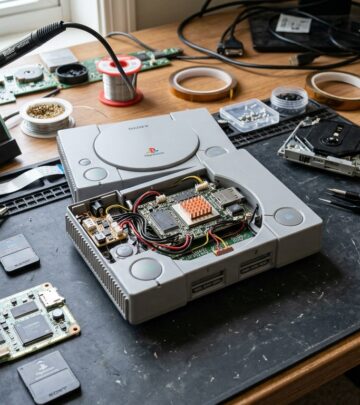
5.3 PS5: Clearing Cache and Rebuilding the Database
PlayStation’s Safe Mode includes tools that can fix corrupted cached data that might be causing errors.
- Turn off the PS5 completely (do not put it in rest mode).
- Once it is fully powered down, press and hold the power button until you hear a second beep. This boots the console into Safe Mode.
- Connect a controller via USB and follow the on‑screen instructions.
- Select the option to clear cache and rebuild database or similar wording, then confirm.
- After the process completes, reboot and launch Marathon.
5.4 Xbox Series X|S: Hard Power Cycle
- Hold the Xbox power button until the console shuts down completely.
- Unplug the power cable from the back for at least 60 seconds.
- Plug it back in, power on, and try Marathon again.
If file repair and cache clearing don’t help, uninstalling and reinstalling Marathon is your final step. This ensures a fresh download and often resolves persistent file-based errors.
6. UI, Overlay, and Streaming-Related Bugs
Some Marathon issues are caused not by the network or game files, but by overlays, screen capture utilities, or streaming software. These can interfere with keyboard/mouse focus, controller detection, or the game window itself.
6.1 Typical Symptoms
- Mouse cursor stuck or invisible in menus.
- UI elements not responding even though the game appears to be running.
- Frequent issues only when streaming or capturing gameplay.
6.2 Fixes for Overlay Conflicts
- Switch to windowed or borderless mode.
Use Alt+Enter on PC to toggle windowed mode, which can restore focus to the game window. - Disable third‑party overlays.
Turn off Discord overlay, GeForce Experience overlay, Steam overlay, and any FPS or performance overlays temporarily. - Adjust streaming settings.
In OBS or similar tools, try capturing your entire display instead of the specific Marathon game window. Some games behave better with full-screen capture. - Close screen capture utilities not in use.
Screen sharing, measuring, or color‑picking tools can sometimes conflict with full‑screen games. - Restart the game after changes.
Once you’ve disabled overlays, fully exit and relaunch Marathon to test.
7. Advanced Network Troubleshooting for Persistent Errors
If you regularly experience disconnects, or if Marathon is the only online game giving you problems, it’s time to take a closer look at your local network configuration. Basic approaches like restarting your router are still helpful, but a few additional steps can improve stability further.
7.1 Check NAT Type and UPnP
Online games often require at least a “Moderate” NAT type; a “Strict” NAT can prevent connections to certain players or servers. Many consoles and routers provide NAT type information in their network settings.
- Ensure UPnP (Universal Plug and Play) is enabled on your router if supported.
- Avoid double NAT (e.g., modem in router mode plus a second router). Use bridge mode on one of the devices if possible.
7.2 Windows Network Reset Commands (PC)
The following steps are commonly recommended when network problems persist at the OS level:
- Run Command Prompt as administrator.
- Execute commands one by one, pressing Enter after each:
ipconfig /flushdnsipconfig /releaseipconfig /renewnetsh winsock reset
- Restart your PC afterward.
7.3 Firewall and Antivirus Rules
Firewalls and security suites can mistakenly flag Marathon’s network traffic as suspicious.
- Add the game executable and its platform launcher (Steam, Epic, console system services) to your firewall’s allowed list.
- Temporarily disable any third‑party security suite to see whether the issue disappears. If it does, re‑enable the suite and configure an exception rather than leaving it off.
7.4 When to Contact Your ISP or Bungie Support
If you still experience issues after all these steps, the problem may lie outside your control.
- Contact your ISP if speed tests are unstable, packet loss is high, or other services also suffer.
- Contact Bungie Support via the Marathon help site or official forums, including:
- The exact error code(s) you see.
- Your platform (PC, PS5, Xbox) and region.
- Steps you have already tried.
8. Preventing Future Marathon Error Codes
While you can’t control when servers undergo maintenance, you can reduce the chance of local problems by maintaining a “healthy” gaming environment.
- Keep your system and drivers up to date. Outdated network drivers and firmware are a common source of strange network behavior.
- Schedule downloads off‑hours. Avoid large downloads or streams on your network when you plan to play.
- Use quality Ethernet cables and routers. Cheap or damaged cables can cause intermittent issues that look like server problems.
- Check storage health. If your SSD or HDD is failing, game files may corrupt more frequently, increasing installation errors.
- Follow official announcements. Monitor Marathon’s official channels for notices about known issues, patches, and maintenance windows.
9. Marathon Error Codes FAQ
Why do I keep getting different error codes every time I try to connect?
Multiple issues can coexist. For example, you might have a slightly unstable Wi‑Fi connection while the servers are under heavy load. As conditions change, different failure points can trigger distinct codes. Focus on the fundamentals (wired connection, router reboot, system updates) and check official server status pages to rule out widespread outages.
Is using a VPN a good way to fix Marathon server errors?
A VPN can sometimes improve routing to certain data centers, but it often introduces extra latency and can cause authentication flags. In most cases, Bungie recommends a direct connection through your usual ISP. Try without a VPN first; only test a VPN if you have strong evidence your ISP is routing traffic poorly.
Do I need to open specific ports for Marathon?
Bungie’s games generally use a mix of ports managed via UPnP on your router. For most players, enabling UPnP and avoiding strict NAT is enough. If you still have problems and are comfortable with advanced networking, consult official Bungie support documentation for recommended ports and consider port forwarding, but do so carefully and securely.
Will reinstalling Marathon always fix my error code?
Reinstalling is very effective for file corruption issues, but it won’t fix server‑side outages or ISP routing problems. Treat a full reinstall as a last resort after verifying files, clearing cache, and confirming that servers are actually online.
Is Marathon more demanding on my network than other games?
Fast‑paced online shooters often require stable, low‑latency connections because they send frequent updates between clients and servers. If your network is borderline, you may notice issues more in Marathon than in slower, less timing‑sensitive games. A wired connection, a reliable router, and healthy ISP service are key.
References
- Marathon Help — Bungie. 2024-05-01 (last updated, approximate). https://help.marathonthegame.com/hc/en-us
- Error Codes and Troubleshooting — Bungie Help. 2023-11-10 (last updated, approximate). https://help.bungie.net/hc/en-us/categories/360003930832-Error-Codes-and-Troubleshooting
- Improving Latency and Packet Loss — Microsoft Support. 2022-09-14. https://support.microsoft.com/en-us/topic/improve-your-online-gaming-experience-5b65a4f9-c1c5-4df5-9ad5-2f1f34c5a0c9
- About PlayStation Network Status — Sony Interactive Entertainment. 2023-08-21. https://www.playstation.com/en-us/support/playstation-network-status/
- Xbox Live Service Status — Microsoft. 2024-01-10. https://support.xbox.com/en-US/xbox-live-status
Similar Articles




Read full bio of Sneha Tete