Optimal CS2 Viewmodel Settings Guide
Unlock peak performance in Counter-Strike 2 with tailored viewmodel configurations that enhance visibility and precision for every playstyle.
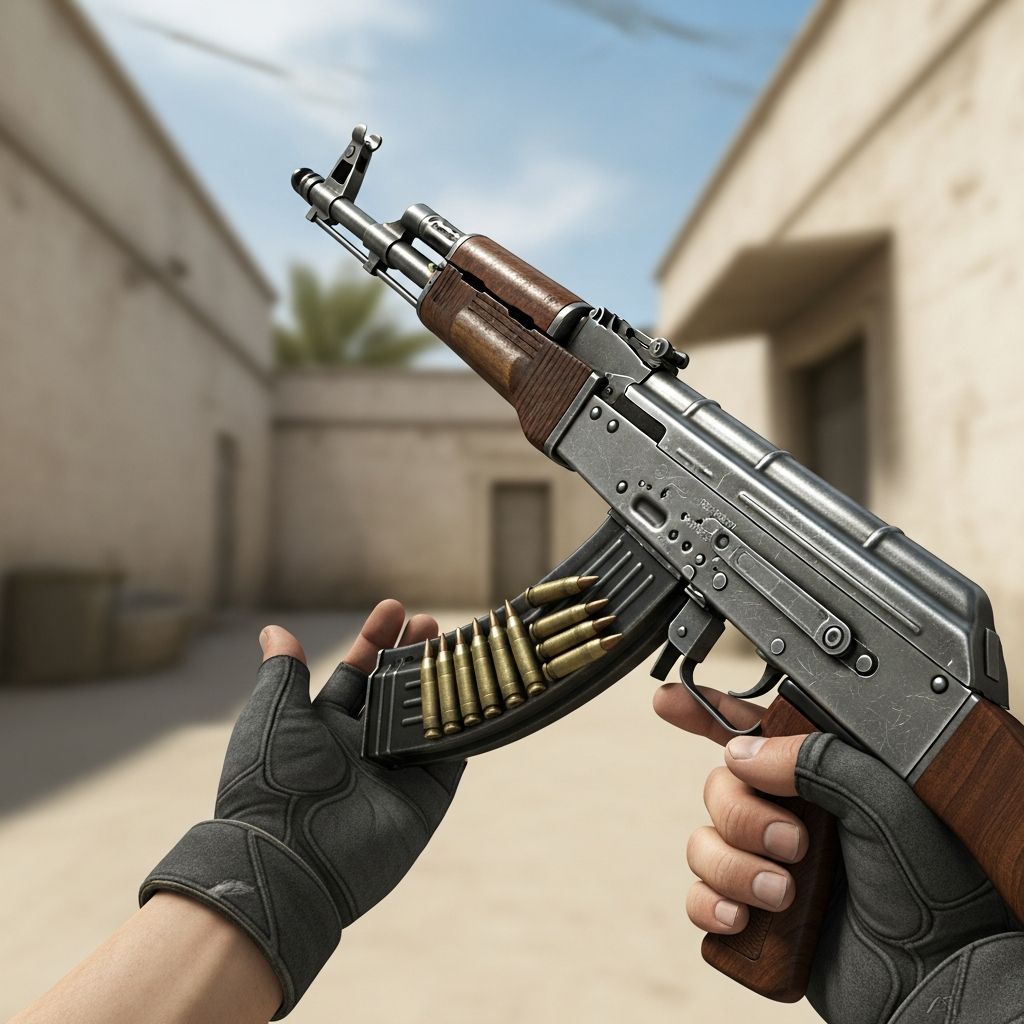
In Counter-Strike 2, the viewmodel determines how your weapon and hands appear on screen, directly impacting awareness and aim accuracy. Customizing these settings minimizes obstructions and maximizes your field of view, giving you a crucial edge in fast-paced matches. This guide explores configurations inspired by top players, explains commands, and provides setups for various preferences.
Understanding Viewmodel Basics in CS2
The viewmodel controls the position, size, and perspective of your in-game weapon model. Key parameters include field of view (FOV), offsets along X (horizontal), Y (depth), and Z (vertical) axes. Higher FOV values shrink the weapon for broader visibility, while offsets shift it away from center to clear screen space. Default settings offer balance but often hinder competitive play by blocking sightlines.
Adjusting these reduces visual noise during sprays, peeks, and utility throws. Pros prioritize minimalism to spot enemies faster, as even slight clutter can mean missing a crucial headshot.
Accessing and Applying Viewmodel Changes
CS2 offers two primary methods: in-game menus for quick presets and console for precise tweaks.
Using the Settings Menu
- Launch CS2 and click the settings icon in the top-left.
- Navigate to the Game tab, then Item section.
- Select from presets like Desktop (1), Coach (2), or Classic (3) under Viewmodel Position.
Presets provide instant changes but lack granularity.
Console Commands for Advanced Control
Enable the developer console in settings (Game > Enable Developer Console). Press ~ to open it. Essential commands include:
viewmodel_fov [54-68]: Scales weapon size; 68 maximizes visibility.viewmodel_offset_x [-2.5 to 2.5]: Horizontal shift; positive right, negative left.viewmodel_offset_y [-2 to 2]: Distance from camera; lower pulls closer.viewmodel_offset_z [-2 to 2]: Vertical adjustment; lower drops hands.viewmodel_presetpos [0-3]: Resets to defaults (0) or presets.
Enter commands directly, e.g., viewmodel_fov 68. Bind to keys for toggling via bind "key" "command". Test in practice mode to avoid mid-match disruptions.
Top Recommended Viewmodel Configurations
No single “best” setup exists, but these popular ones suit different needs. Use the table below for quick comparison.
| Config | X Offset | Y Offset | Z Offset | FOV | Ideal For |
|---|---|---|---|---|---|
| Max Visibility | 2.5 | 2 | -2 | 68 | Competitive pros |
| Balanced Classic | 0 | 1 | -1 | 60 | CS:GO transitions |
| Minimal Clutter | -2 | 2 | -2 | 68 | High awareness |
| Weapon Showcase | 2 | -2 | 2 | 68 | Casual/skin fans |
Max Visibility Setup
This pushes the weapon far right, down, and back for unobstructed screens. Commands:
viewmodel_offset_x 2.5viewmodel_offset_y 2viewmodel_offset_z -2viewmodel_fov 68
Perfect for riflers needing clear corners.
Balanced Classic Setup
Mimics CS:GO feel with centered positioning. Commands:
viewmodel_offset_x 0viewmodel_offset_y 1viewmodel_offset_z -1viewmodel_fov 60
Suits veterans avoiding drastic changes.
Minimal Clutter Setup
Shifts left for edge visibility. Commands:
viewmodel_offset_x -2viewmodel_offset_y 2viewmodel_offset_z -2viewmodel_fov 68
Ideal for aggressive peekers.
Weapon Showcase Setup
Enlarges and centers for immersion. Commands:
viewmodel_offset_x 2viewmodel_offset_y -2viewmodel_offset_z 2viewmodel_fov 68
Great for casuals admiring skins.
Pro Player Viewmodel Insights
Elite players fine-tune for their hardware and style. Examples:
- ZywOo:
viewmodel_fov 68; viewmodel_offset_x 2.5; y 0; z -1.5; presetpos 3. Maximizes space. - NiKo:
viewmodel_fov 65; x -0.5; y 1; z -2; presetpos 1. Slight left shift. - iM:
viewmodel_fov 60; x 0; y 1; z -2; presetpos 0. Conservative.
Copy via prosettings.net, then tweak. Pros favor FOV 68 and right offsets for AWP/ rifle clarity.
Fine-Tuning for Your Playstyle
AWP Users: Extreme right/down offsets (x 2.5, z -2) prevent scope obstruction.
Riflers: High FOV with y 2 for spray visibility.
Entry Fraggers: Minimal left (x -2) for wide peeks.
Test in deathmatch; adjust incrementally. Pair with low sensitivity for stability.
Common Pitfalls and Fixes
- Over-Offsetting: Weapon vanishes; cap at bounds.
- Low FOV: Clutter builds; aim 65-68.
- Config Loss: Add to autoexec.cfg in cs2/cfg folder.
Advanced Tips for 2026 Meta
With CS2 updates emphasizing precision, combine viewmodel with crosshair binds and raw input. Monitor pro configs post-patches, as metas shift. FOV 68 remains dominant for visibility.
Frequently Asked Questions
What is the default CS2 viewmodel?
viewmodel_fov 60; x 1; y 1; z -1. Balanced but suboptimal for pros.
How do I reset viewmodel?
viewmodel_presetpos 0 or 1.
Does viewmodel affect FPS?
Negligibly; focus on GPU settings.
Can I use left-handed viewmodel?
Yes, negative x offsets simulate it.
Best FOV for beginners?
60-65 to ease transition.
References
- Best CS2 Viewmodel Settings for Optimal Gameplay — tradeit.gg. 2024. https://tradeit.gg/blog/best-cs2-viewmodel/
- Why Pros Are Using These CS2 Viewmodel Settings — YouTube (prosettings.net referenced). 2024. https://www.youtube.com/watch?v=xP-JUReoLyc
- The Best Viewmodel Settings in CS2 — DMarket Blog. 2024. https://dmarket.com/blog/viewmodel-settings-in-cs2/
- CS2 Viewmodel Settings in 2026: The Ultimate Guide — CS.MONEY Blog. 2026. https://cs.money/blog/esports/csgo-settings-viewmodel/
- The BEST VIEWMODEL SETTINGS for CS2 — YouTube. 2024. https://www.youtube.com/watch?v=VQh7meiwyqA
Similar Articles







Read full bio of Sneha Tete