Optimal Overwatch 2 Settings Guide
Unlock peak performance in Overwatch 2 with tailored settings for PC, Xbox, PlayStation, and Switch to boost FPS, aim precision, and competitive edge.
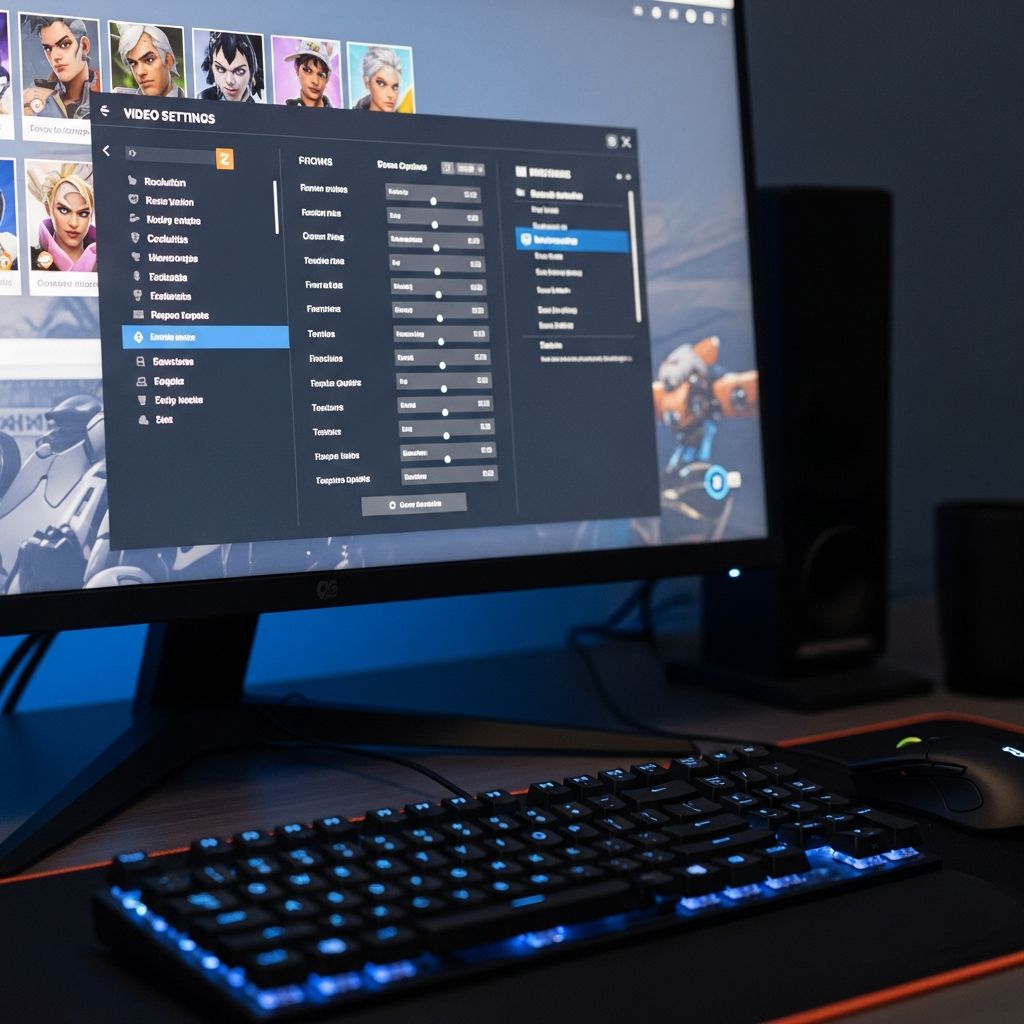
Mastering Overwatch 2 requires more than skill—it demands finely tuned settings that align with your hardware and playstyle. This guide delivers platform-specific recommendations drawn from expert analyses and pro player preferences, helping you achieve higher frame rates, smoother aiming, and clearer visibility on PC, Xbox, PlayStation, and Nintendo Switch. Whether you’re a competitive climber or casual player, these adjustments can transform your gameplay experience.
Why Settings Matter in Overwatch 2
Overwatch 2’s fast-paced action hinges on responsiveness. Incorrect settings can lead to input lag, low FPS, or imprecise targeting, putting you at a disadvantage. Optimized configs prioritize native resolutions, reduced graphical load, and controller tweaks like aim assist strength. Pros consistently emphasize fullscreen modes, high FOV for awareness, and disabled V-Sync to minimize latency.
Testing these on your setup is key, as hardware varies. Start with video settings for broad impact, then refine controls. Expect gains in FPS from 20-50% on mid-range systems by lowering shadows and effects.
PC Optimization: Maximizing FPS and Precision
PC offers the most customization, allowing mouse DPI tweaks, NVIDIA Reflex, and DLSS/FSR upscaling. Aim for 144+ FPS on capable rigs for fluid 240Hz monitors.
Essential Mouse and Control Configurations
- DPI: Set to 800 for balanced tracking—higher risks jitter, lower sacrifices speed.
- Sensitivity: 5-7.5 in-game, yielding eDPI of 4000-6000 for pro-like flicks.
- Zoom Sensitivity: 35-40% to maintain consistency on scoped heroes.
- Polling Rate: 1000Hz for minimal delay.
- Allied Health Bars & Outlines: Always on for team awareness.
- High Precision Mouse Input: Enabled in gameplay options.
Video and Graphics Presets
Use fullscreen at native resolution and refresh rate. FOV at 103 expands peripheral vision without distortion.
| Setting | Recommended | Reason |
|---|---|---|
| Display Mode | Fullscreen | Lowest latency, exclusive GPU access. |
| Resolution | Native (e.g., 1920×1080) | Sharpest image, no scaling blur. |
| Field of View | 103 | Optimal awareness. |
| V-Sync | Off | Eliminates input lag. |
| Triple Buffering | Off | Reduces overhead. |
| Reduce Buffering | On | Cuts frame pacing issues. |
| NVIDIA Reflex | On + Boost | Shrinks system latency. |
| Limit FPS | Display-Based or Custom (e.g., 240) | Matches monitor Hz, stabilizes frames. |
Advanced Graphics for Balance
Custom quality preset sacrifices visuals for performance:
- Texture Quality: Medium
- Texture Filtering: 2x-8x (hardware-dependent)
- Local Fog: Low
- Dynamic Reflections: Off
- Shadow Detail: Low-Medium
- Model/Effects Detail: Low
- Lighting: Low-Medium
- Ambient Occlusion: Off
- DLSS/FSR: Quality (if available)
These yield high FPS while retaining readability—crucial for spotting enemies.
Console Mastery: Xbox, PlayStation, and Switch
Consoles rely on controllers, so focus on sensitivity, aim assist, and performance modes. New-gen systems (PS5, Xbox Series X/S) support 120 FPS.
Core Controller Adjustments
Balanced sensitivity prevents over-aiming:
- Horizontal/Vertical Sensitivity: 45 for smooth tracking.
- Aim Assist Strength: 95—strong lock-on without stickiness.
- Aim Assist Window: 70
- Aim Technique: Linear Ramp for responsive curves.
- Aim Smoothing/Ease In: 0/20
- Vibration: Off to reduce distractions.
Video Settings for Consoles
- Preferred Mode: Frame Rate (120 FPS on PS5/Xbox Series).
- Resolution: Native or Performance Priority.
- FOV: 103
- V-Sync: Off (or monitor-dependent).
Accessibility tweaks: Reduced camera shake, HUD shake off.
Switch-Specific Tweaks
Hybrid play demands gyro for precision:
- Gyro Pitch/Yaw/Roll Sensitivity: 8/0/12
- Invert Axes: Off
- Disable Gyro on Stick: On
These enhance portable aiming without fatigue.
Performance Comparisons Across Platforms
| Platform | Target FPS | Key Strength | Weakness |
|---|---|---|---|
| PC | 240+ | Custom FPS, low latency | Hardware variance |
| PS5/Xbox Series | 120 | Consistent 120Hz | Fewer tweaks |
| Xbox One/PS4 | 60 | Stable baseline | Lower refresh |
| Switch | 60 (docked) | Gyro aiming | Lower res/FPS |
Advanced Tips for Competitive Play
Beyond basics, monitor stats (On in video settings) to track FPS drops. Pair with high-refresh peripherals. For PCs, ensure GPU selection and latest drivers. Test in custom games—adjust sensitivity via aim trainers.
Hero-specific: Wider FOV aids flankers like Tracer; lower sens suits snipers like Widowmaker.
Frequently Asked Questions
What is the best FOV for Overwatch 2?
103 provides the widest view without fisheye distortion, improving situational awareness.
Should I use V-Sync in competitive matches?
No—disable it to avoid input lag, even if it causes tearing.
Linear Ramp vs. Dual Zone Aim Technique?
Linear Ramp offers predictable acceleration, favored by pros for consistency.
How do I fix low FPS on console?
Set to Frame Rate mode and close background apps.
Is gyro aiming worth it on Switch?
Yes, for fine adjustments—set sensitivities as listed for intuitive control.
Testing and Iteration
Apply changes in practice range. Record demos to review aim smoothness. Community benchmarks show 800 DPI/6 sens as a versatile starting point. Update with patches, as Blizzard tweaks often affect performance.
References
- The Best Overwatch 2 Settings For PC, Xbox, PlayStation, Switch — Esports Driven. 2023. https://esportsdriven.com/overwatch/guides/471/the-best-overwatch-2-settings-for-pc-xbox-playstation-switch
- Best Video Settings For Overwatch 2 — Turtle Beach. 2023. https://www.turtlebeach.com/blog/overwatch-2-best-video-settings-xbox-series-x-s-playstation-5-pc-switch
- The ULTIMATE Overwatch 2 Controller Settings Guide — YouTube (Overwatch Channel). 2023. https://www.youtube.com/watch?v=ckZwbon2zLE
- Overwatch 2 BEST Settings/Sensitivity PC PS5 XBOX — YouTube. 2023. https://www.youtube.com/watch?v=xTwz4rimIHQ
- Overwatch 2 Best Settings for MAX FPS and QUALITY! — YouTube. 2023. https://www.youtube.com/watch?v=Dkcu8NVPTeA
Similar Articles





Read full bio of Sneha Tete